How Email Job Alerts Work on Bytajobb.se – Complete Guide

Keeping track of tens of thousands of open positions manually takes time — and in today's labor market, applying early when a new job posting is published makes a real difference. With job alerts on Bytajobb.se, you do not have to run the same searches over and over every day. Instead, the platform monitors the job market for you, shows you exactly how many new jobs have arrived since you last checked, and sends an email summary when new matching jobs are published.
All of your alerts — whether for search filters, commute time, or specific companies — are collected in one place under My Alerts (Mina bevakningar) in the left sidebar on the Job Search page.
In this guide, we walk through how alerts work, how to spot new matches directly on the site, and how to customize your email delivery.
How Email Delivery and Live Web Badges Work
All job alerts on Bytajobb.se combine email digests with a live unread overview directly on the site when you are signed in:
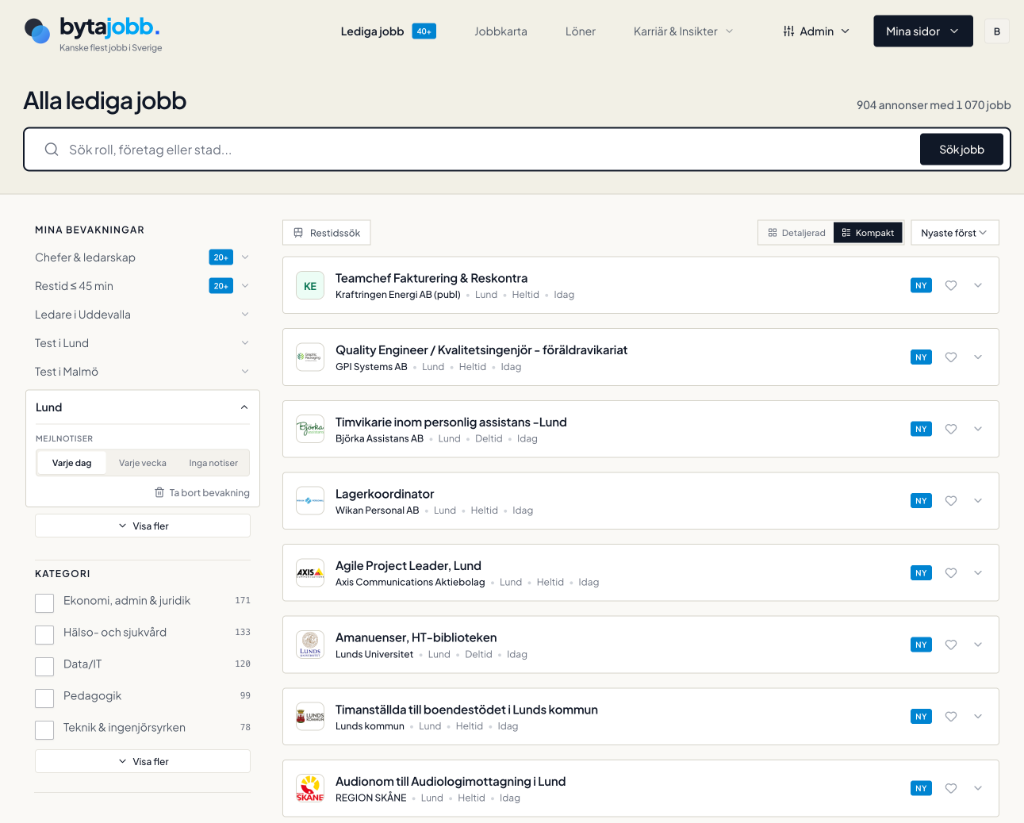
- Total unread counter in the top menu: Next to Open Jobs (Lediga jobb) in the top navigation bar, a blue badge (e.g.,
40+) shows the combined number of unread new jobs across your alerts. - Per-alert badge — automatically sorted to the top: Under My Alerts (Mina bevakningar) in the left sidebar, each alert displays a blue badge with the number of new jobs published since you last clicked it (up to
20+per alert). Alerts with unread matches are automatically sorted to the very top of your list so none are ever hidden behind "Show more". - Blue "NEW" (NY) badge on every new job card: When you click an alert to run its search, its counter resets and every job posting published since your previous visit to that alert is highlighted with a blue NEW (NY) badge directly in the results list.
- Daily email summary: In addition to the live web badges, our alert system checks all newly published job postings from the past 24 hours and sends one consolidated email per day (or per week) — and only on days when new matching jobs have actually been published. No empty emails are ever sent.
1. Monitor Any Search Filter or Commute Time Directly in Job Search
The fastest way to create an alert is directly on the Job Search page while filtering open positions.
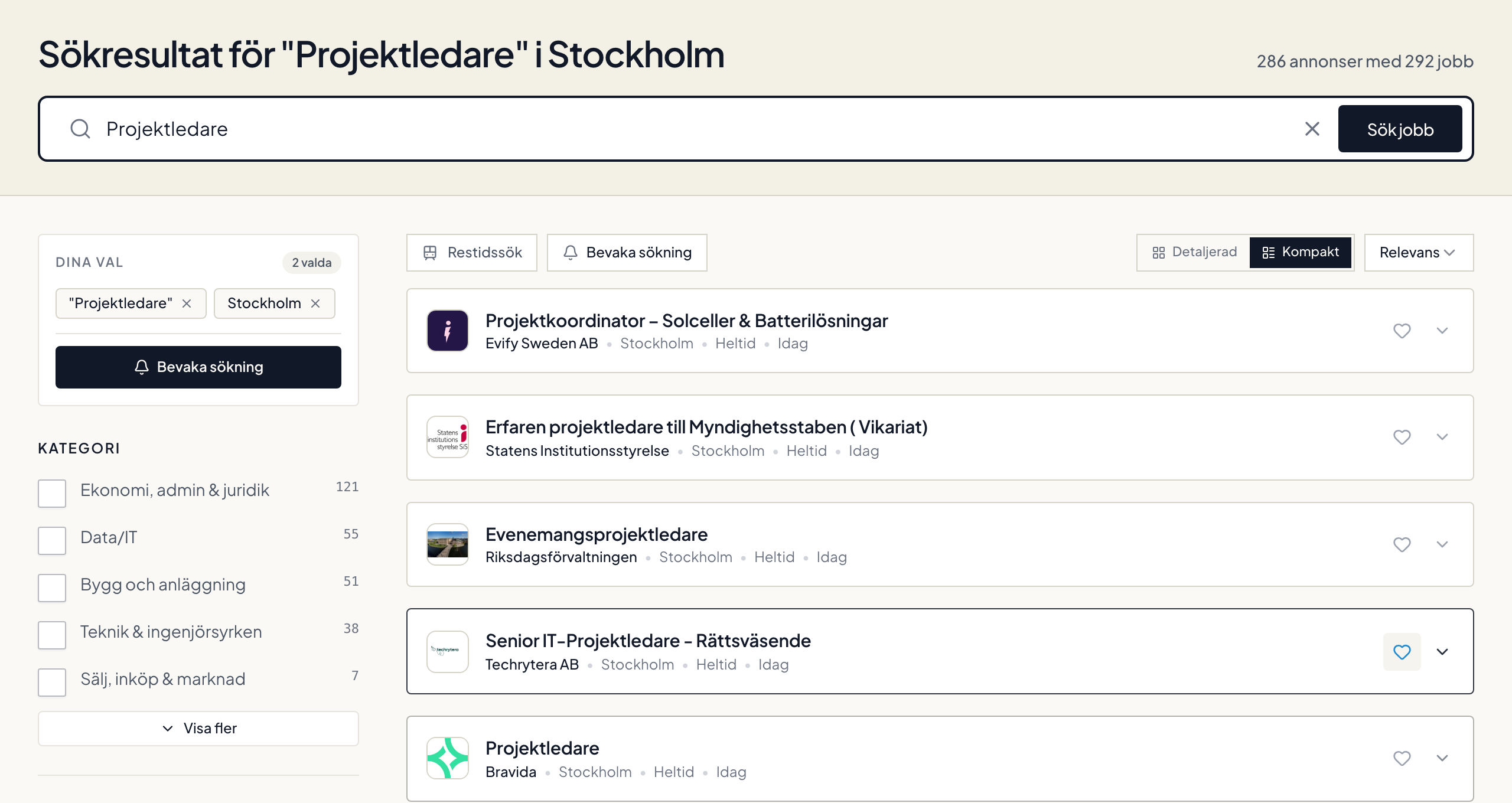
Here is how it works:
- Filter for what you want: Combine keywords (e.g., Project Manager), job categories, municipalities, regions, skill tags, or employment types. You can also use Commute Search (Restidssök) to filter for jobs within, for example, 45 minutes by public transit, car, or bike.
- Click "Create alert" (Bevaka sökning) under Active Filters: As soon as you have selected at least one filter or keyword, the Active filters (Dina val) box appears at the top of the left sidebar (and in the results toolbar) with the Create alert (Bevaka sökning) button.
- Done! Your filter combination is saved directly under My Alerts (Mina bevakningar).
Whenever you return to the job search page, you can click the name of any saved alert under My Alerts to apply its filters and see all newly published jobs marked with NEW (NY).
2. Match Against Your CV in My Pages
If you have uploaded your CV or completed your competence profile under My Pages, the platform analyzes your skills, previous roles, and experience against newly published job ads. Under Overview & Job Alerts, you can view recommended positions that match your profile with at least a 70% profile match.
3. Follow and Monitor Specific Employers
Have your sights set on one or more specific companies, public agencies, or municipalities? You can follow the employer directly so that new openings appear both under My Alerts with unread badges and in your email summary.
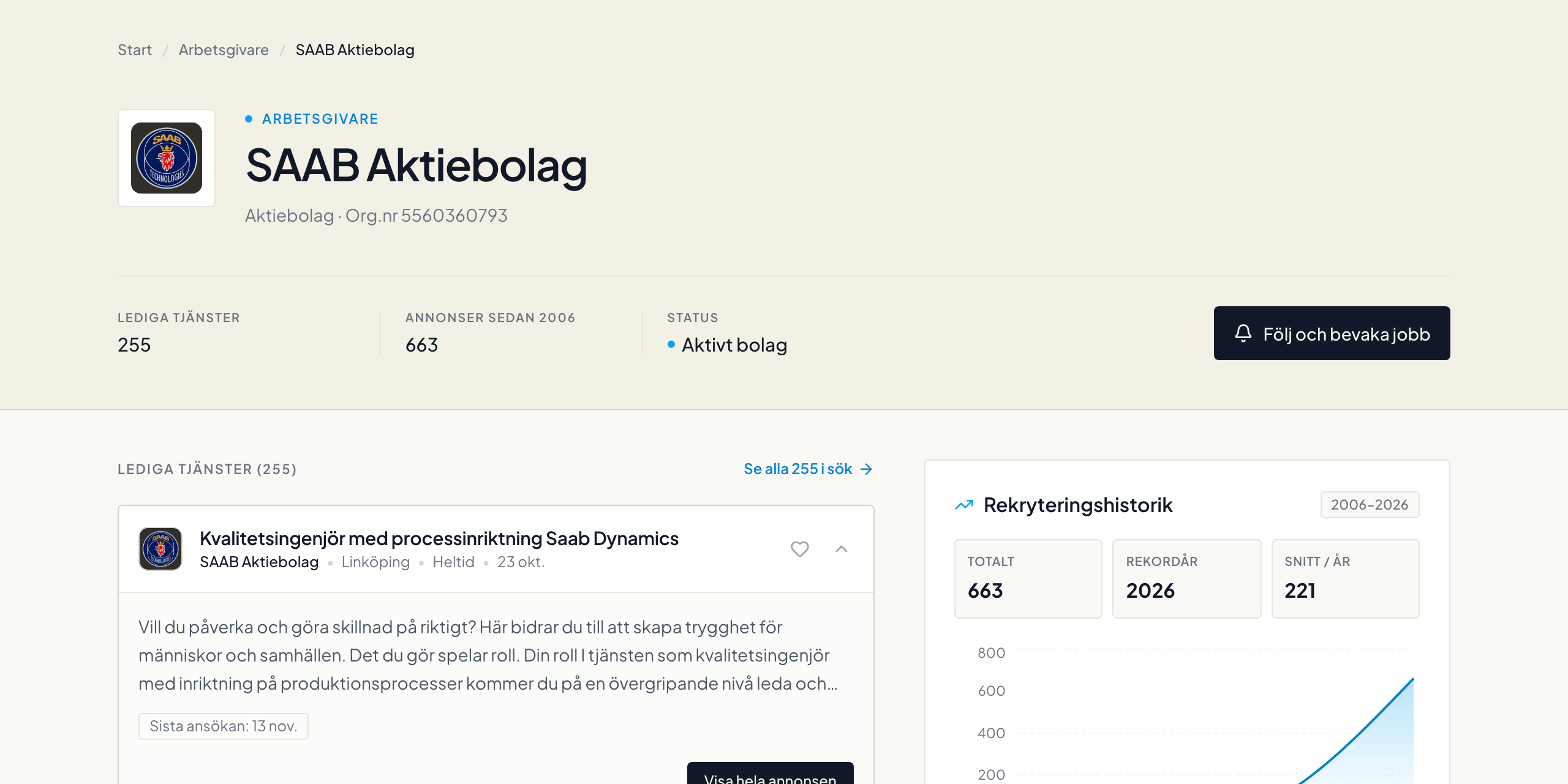
You can start an employer alert in two places:
- On the employer's profile page: Visit any company under Employers and click Follow and monitor jobs (Följ och bevaka jobb) in the top right corner.
- Directly inside a job ad: Click Follow company (Följ företag) in the sidebar next to the job posting.
All employers you follow are listed under My Alerts (Mina bevakningar) in the left sidebar of the Job Search page, complete with unread counters and NEW (NY) badges when new jobs are posted.
How to Change or Pause Your Email Alerts
You always have full control over how often you receive emails — or whether you want to pause emails completely and only use the alert with unread badges on the web:
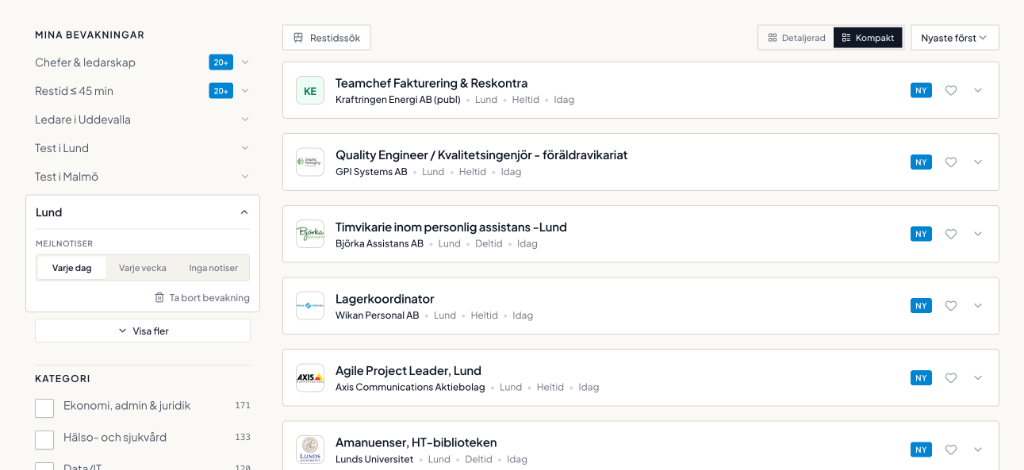
- Expand settings using the chevron (
⌄) next to the alert: Clicking the arrow on the right side of an alert under My Alerts opens its settings without clearing your unread counter. There you can choose your Email notifications (Mejlnotiser) frequency:- Every day (Varje dag) – Daily email digest when new jobs match.
- Every week (Varje vecka) – Weekly summary via email.
- No alerts (Inga notiser) – No emails are sent, while the alert remains saved as a quick filter with live unread badges on the web.
- Update or remove an alert: Inside the expanded panel, you can also update the alert if you have adjusted your active filters, or click Remove alert (Ta bort bevakning) / Unfollow (Sluta följa) to delete it immediately.